Keeping It Portable In 2026: Choosing A Compact Braille Display For iPhone Part 2
Scott Davert's series continues with an in-depth comparison of the Orbit Reader 20 Plus and the Actilino. This review examines battery life, Bluetooth connectivity, unique features like Active Tactile Control, and practical considerations for iPhone users choosing portable braille solutions.
By Scott Davert
January 26, 2026
Introduction
In the first article of this series, I examined the Focus 14 and the Brailliant BI 20X. In part 2, I’ll be reviewing the Orbit Reader 20 Plus from Orbit Research and the Actilino from HelpTech. Part 3 will cover the B.Note 20 and the Orbit Reader q20.
Orbit Reader 20 Plus
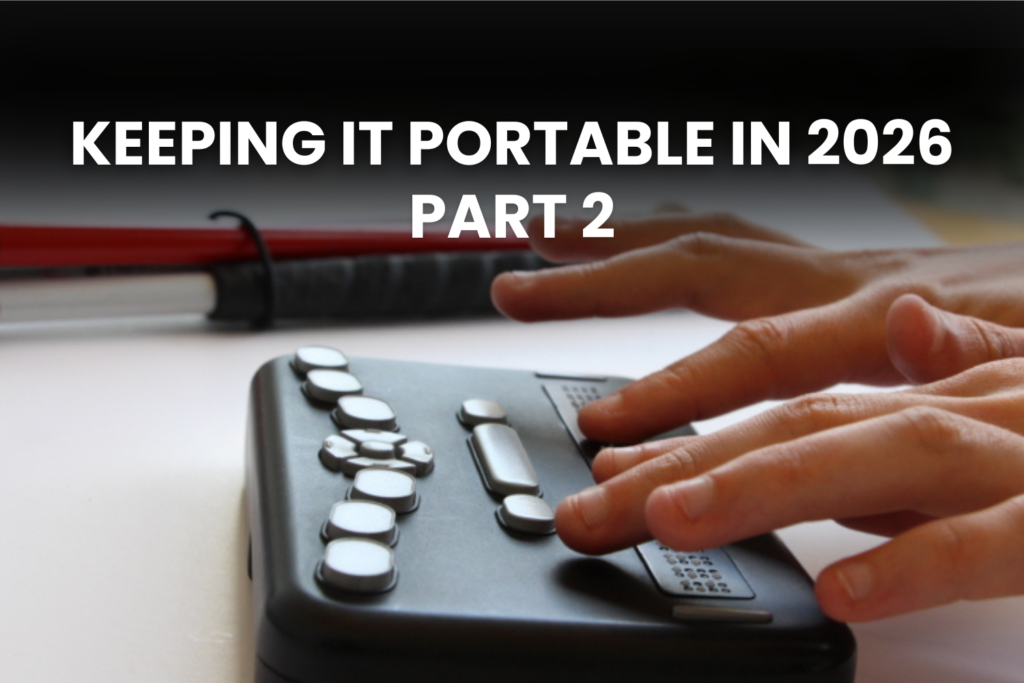
The Orbit Reader measures approximately 6 inches long by 4 inches wide by just over 1 inch high. With the device oriented so the braille display is closest to you, the layout is as follows. At the front of the device is the 20-cell braille display. To either side of the display, you will find the panning buttons, which can be pressed up or down. Above the display, there are orientation dots above cells 5, 10, and 15. Behind the display, from left to right, you will find Dot 7, the Spacebar, and Dot 8. Directly behind the spacebar are four Arrow keys with a round Select button in the center. Behind the Arrow keys is the 6-dot Perkins-style keyboard. These keys are oval-shaped and arranged straight across from one another.
On the back of the device are, from left to right: the power button, an SD card slot with a card already inserted, and a Micro USB connector for charging the Orbit Reader and connecting to devices over USB. On the front of the Orbit Reader 20 you will find two holes, one on each side, for attaching a strap or lanyard to the display (a strap is not provided). Flipping the device over, you find many screws, four rubber feet, and the plastic battery door, which can be removed. This device does not have cursor routing buttons.
Connecting To iOS
To pair an Orbit Reader 20 Plus with an iOS device, from the main menu on the Orbit Reader 20 Plus, press and hold the Select button along with the Right Arrow key. If the user has chosen to use the setting called “More Secure” they will need to match a pin number between both the Orbit Reader 20 Plus and the iOS device. For more information about this type of connection, check out the Orbit Reader 20 Plus Manual. The other option, “Just Works” is exactly as described, no pin needed.
On iOS, the user must pair through the conventional method of going to Settings>Accessibility>VoiceOver>Braille and choosing the Orbit Reader from the list of available devices.
USB is not supported for the Orbit Reader 20 Plus on iOS, as told in the User documentation. I tried connecting it anyway with a Micro USB to USB-C cable, but the connection was not successful in either the Refreshabraille 18 emulation, nor the HID mode. One USB connection with another device is possible, though that connection cannot be an iPhone over USB.
Unique Features On iOS
Though there isn’t exactly a clipboard feature, it is possible to compose text through the internal translator which can then be sent to the iPhone. To activate this, press the Select button along with the Down Arrow key when connected. When done, press dot 8 to send the text to the connected iPhone. Due to the unique braille cell technology, which has good and bad points, the refresh rate is slightly slower than what I’ve found on other devices, though I’ve not found it cuts into my productivity much. What I have found a bit challenging is the lack of Cursor Routing buttons. Since the Orbit Reader is the most economical option, it’s understandable that the price difference will come with some compromises. There are some ways to offset this, such as using space with f to invoke VoiceOver find and then typing what you are trying to get to. Utilizing the VoiceOver feature called the Rotor can also help with cursor navigation.
Another Hardware Option
While I’ve covered the Orbit Reader 20 Plus in great detail, there is also a less expensive model called the Orbit Reader 20. At the time of writing, this device was available for $100 less than the Plus version. In testing, other than a slightly longer delay in establishing the connection, in terms of iOS only consideration, the user experience seems equal. However, if the user would like an internal calendar, clock, or calculator, the Plus is a more suitable option.
Miscellaneous
Battery life on the Orbit Reader 20 Plus seems to be between 22-24 hours of use. This is with heavy utilization of Bluetooth on an iPhone. The Orbit Reader supports a single connection to Bluetooth at a time. Though one can be paired with multiple Bluetooth devices, only one can be active at a time.
Though the Orbit Reader 20 Plus does not ship with a case, there is a case available from a company called Turtle Back. It’s available for $112 on the Orbit Research website.
I mentioned the different kind of cell technology used in the Orbit Reader 20 Plus above. While the refreshing of these cells is a bit more noisy than other products on the market, this technology has some advantages. For example, in situations involving clients who have Diabetic Neuropathy who struggle to read braille, I’ve found that some individuals are able to read the dot patterns on the cells used by Orbit Research, but not other manufacturers. They also seem to be more forgiving when a user reads with a heavy hand, as they do not have the “spongy” characteristic most braille devices do.
The SD card feature is not unique to the Orbit Reader 20 Plus, though it’s worth noting. Since it requires saving files to an SD card, this means that if something goes wrong with the display and it must be sent in for repair, the user can extract the SD card and take their internally created documents with them.
Actilino
The Actilino is a 16-cell braille display manufactured by Help Tech, formerly known as Handy Tech. It features a 16 GB Micro SD card, the ability to move media to and from the Micro SD card and Active Tactile Control. The Actilino measures 6.5 inches long by 1.1 inches tall by 4.3 inches wide, and weighs approximately 14 ounces. It is shaped like a rectangle, with a tapered edge at the front. Placing the device with its downward-sloping edge nearest you, you will find a speaker on the front left, a Micro SD slot (used with internal functions), and a second speaker on the right front side. Starting with the keys closest to you, from left to right, you have the first of two rectangular-shaped Spacebars, a joystick, and the second Spacebar. Behind this, you will find a depression that contains 16 cells of braille with a three-way rocker button at each end (these rocker buttons are referred to as “triple-action keys” in the manual). Each button can be pressed upward, downward, or straight down. Behind the 16 cells of braille, and level with the upper part of the rocker buttons, are 16 cursor routing buttons that are raised slightly higher than the depression that contains the cells. Behind the cursor routing buttons, and on an elevated surface, is the Perkins-style keyboard. There is also a microphone located between dots 1 and 4. On the back of the Actilino, there is a magnet, though it’s not tactilely discernible unless the display is in the case. The magnet ensures the Actilino stays securely in the included carrying case.
On the left side of the Actilino, the port closest to you is a 3.5 mm headphone jack. The port located behind the headphone jack is used for charging,
connecting to USB-enabled external devices, and sending and receiving data. When shipped, the port is a proprietary magnetic plug. If the user removed the magnetic covering of this port, it will then become a USB-C port. Along the right side, closest to you is the round Power button followed by a Type A USB port for plugging in external keyboards.
Connecting To iOS
For the first 15 minutes that the Actilino is powered on, Bluetooth is activated. If you have had the device on for more than 15 minutes without using Bluetooth, it switches off to conserve battery. It’s not necessary to do anything else on the Actilino before going into Settings >Accessibility>VoiceOver>Braille on your iOS device. Find the Actilino from the list of displays in range, and select it. The iOS device will come up with a PIN code that should match the one displayed on the Actilino. Press Y on the Actilino, and then select confirm on your iOS device.
Unique Features On iOS
While VoiceOver has an autoscroll option, the feature works by scrolling forward based on a set duration of time. Help Tech has an entire line of displays that feature Active Tactile Control (ATC) technology, which senses when your fingers reach the end of a line of braille and automatically advances the display. Though I typically read with a light touch, and I had to turn the sensitivity level to its highest setting on the older versions of the Actilino, I found that the latest model is much more responsive. One can adjust the sensitivity from the ATC settings found in the Actilino’s internal menu. It’s a stable, very unique, and wonderful feature to have on any display, but particularly a smaller one.
Audio Output
I mentioned in the Actilino’s description that there are two speakers and a microphone on board. Though you must pair your iOS device separately for the audio feature, doing so does give you an external device that is slightly louder than the iPhone’s internal speaker. It also enables you to make phone calls, or use other audio-specific apps, from the Actilino. To enable the Bluetooth audio interface, when the Actilino is powered on, press space with dots 2-5-7-8. The Actilino will emit a series of tones that indicate it is ready to pair with an external device. Go to Settings > Bluetooth and find a device called “POR” with numbers after that. Double tap, and the connection should be established within about two seconds.
I found that the audio quality leaves a bit to be desired when sent through the Actilino’s internal speakers. In particular, I found that VoiceOver sounded a bit wobbly, but found it sounded more clear when connected to speakers or headphones through the 3.5 mm jack. Most importantly, I found that audio is not cut off when there is a pause and audio resumes playing. This feature may come in handy if you want to use a 3.5 mm plug to connect to an external sound source. I also noticed that the braille display didn’t suffer any sort of lag when there were two connections to the same device. During a test FaceTime call, the person on the other end sounded very clear through external speakers, but they reported that my audio sounded a bit “distorted”.
There are still some issues remaining with the audio interface. For example, I turned the Actilino off and back on, and even though I re-enabled the audio interface, I found that the connection was no longer stable. I had to forget the Actilino’s audio connection to my iPhone and then re-establish it to stabilize the connection.
If you are reading a book on the Actilino, and one of your connected devices wakes up, the Actilino will automatically jump back to that device. Of course, this will not happen if 15 minutes have elapsed and Bluetooth has switched off. That said, if you wish to read a book on the Actilino, you may find it useful to put your iOS device on the Do Not Disturb setting. You can exit PC mode, which is what the Actilino calls being connected to an external device, by pressing space with dots 1-3-4. It’s true that Space with M on an iOS device mutes speech, and the keyboard command still accomplishes this, but you can mute speech without exiting PC mode by adding Dot 7 to the command.
Moving Text From The Actilino To An iOS Device
If you have composed text in the Editor, you may wish to transfer it to your iOS device. With the Actilino, after copying the text to the clipboard, consult the manual for details, press Space with dots 1-5-7 to send it to the iOS device.
Miscellaneous
Battery life on the Actilino with a braille display connected to iOS and light use of the word processor seems to be around 26 hours. Enabling the audio output at the same time will certainly decrease battery life, though I did not test with both enabled for a consistent amount of time to report on that. The Actilino can connect to up to 3 Bluetooth devices simultaneously. The user can cycle through connected devices by pressing space with dots 4-5-8.
Product Information
Product: Orbit Reader 20 Plus
Company: Orbit Research
Cost At Time Of Writing: $899
Product: Orbit Reader 20
Company: Orbit Research
Cost At Time Of Writing: $799
Product: Actilino
Company: Help Tech (distributed in the US by Dream Vision Group)
Cost At Time Of Writing: $2795