CSUN 2026 from a DeafBlind User’s Perspective: Braille Takes Center Stage
HKNC Lead Research and Training Specialist Scott Davert spent 2.5 days on the CSUN 2026 exhibit floor. In Part 2 of his coverage, he focuses on braille technology, with new displays and notetakers from five companies, including multi-line devices that put text and tactile graphics on the same surface.

By Scott Davert
April 14, 2026 (updated July 13, 2026)
Introduction
In Part 1 of my coverage of CSUN 2026, I wrote about some new vendors I encountered in the exhibit hall and provided updates on those I featured last year. Part 2 focuses specifically on braille technologies. While I’ve covered 5 companies in this article, it is not an exhaustive list of what was on display. Covering every update and new product in detail would require far more than a single article, so I had to be selective in what I chose to feature. This speaks to the amount of braille innovation happening, and I’m very enthusiastic about where braille support is headed. As a DeafBlind individual, braille is an essential tool that supports my ability to thrive both personally and professionally. Any errors are likely the result of having only a few minutes to closely examine each product. I’ve provided links to each company so readers can follow developments or verify details directly from the source. It’s also worth noting that 3 of the product lines covered are not ready to be released, so things may change between when this article is published and when these devices arrive for purchase.
Launching into Orbit with the Flow and Strata
2026 finds Orbit Research continuing to expand its product offerings and also finding ways to cut costs for consumers. They plan to offer two different product lines later this year in addition to their current offerings. One of the significant differences between the forthcoming devices and what they offer now on the market is the cell technology in use. While some users find the Orbit Research Tactuator™ technology used in their TrueBraille cells to be all they can read, others are not as pleased with the noise and slight delay these cells cause. The new devices will use the more conventional piezo cells. They are more expensive to manufacture, but they are also more quiet and more responsive when compared to Orbit’s technology. To be clear, Orbit is not abandoning their cell technology but is offering customers more options if they prefer what other braille device manufacturers are using.
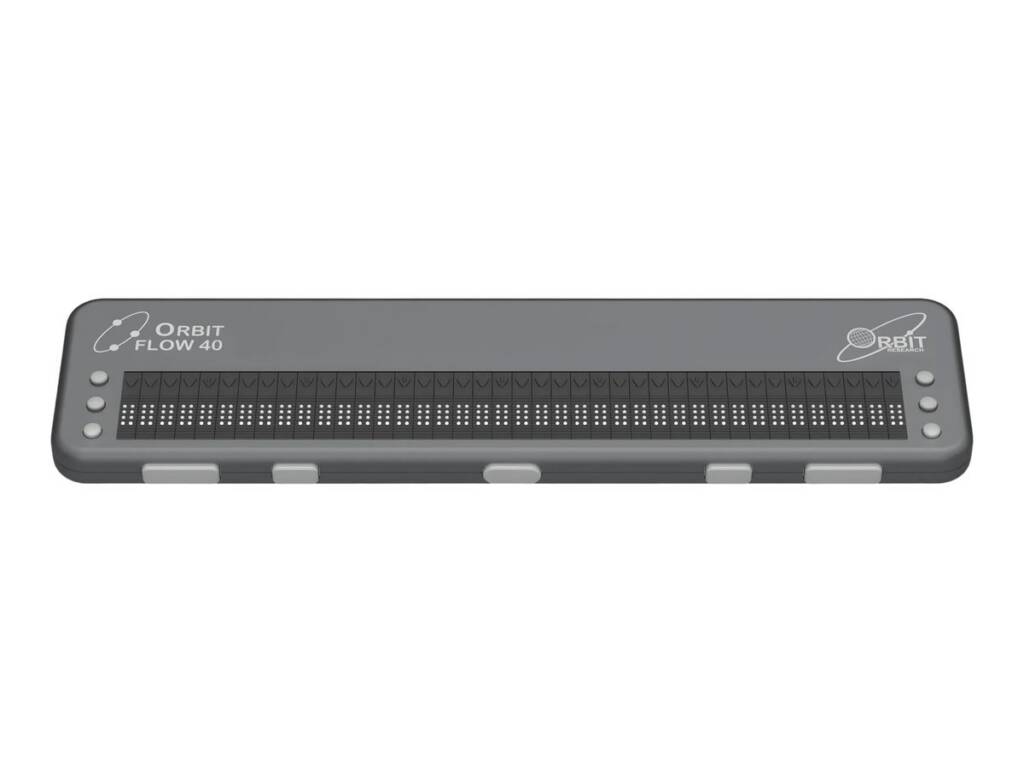
First is the Orbit Flow 40. The design feels like a premium product given its aluminum design. If you have ever examined the builds of products from Baum, which include several rebranded Humanware products like the Braille Connect, the housing is very similar. What differentiates this device from others on the market is that it is for use with USB only. It is literally plug-and-play with devices running screen readers. This allows the Flow to be very lightweight, since it does not contain a battery, Bluetooth radio, or any standalone functionality. Its compact design and 0.6 pound weight make it an attractive device for those happy with their laptop keyboards who only want the braille output. The device has forty braille cells, cursor routing buttons behind each cell, thumb keys on the front of the device for navigation and six configurable panning keys for screen reader commands with 3 located on either side of the display. These six keys have a lot of productivity potential if they are mapped in the way older braille devices were with respect to their connected screen readers. For example, these six keys on devices like the VarioUltra and Brailliant BI 32 were treated as though they performed chorded commands. Keys 1-2-5 would take the user to the Home Screen. It also means the user can map other commands to any number of the hundreds of VoiceOver functions available. The Orbit Flow will support screen readers on Windows, macOS, iOS, Android, Chrome OS, and Linux without the need to install a driver.
Though most displays can be configured to launch the Terminal application for screen readers, any kind of a reset requires that the user reconfigure these settings. For some of the clients I have worked with, they would just like to have braille output without any kind of menu or other internal features which can distract from simply turning the device on and using it. The Orbit Flow 40 is expected to be released in the second half of 2026, but the price has not been officially announced. In their virtual monthly meeting with customers for March 2026, CEO Venkatesh Chari indicated that Orbit Research is aiming for around $2,500. Final pricing will depend on many external factors which remain uncertain, with further details available in the linked transcript.
The other product line announcement Orbit Research made concerned the Strata line of devices. There will be a Strata and a Strata Pro series. The Strata 40 is essentially an Orbit Reader 40 with piezo cells and a few hardware changes. For example, the Orbit Reader 40 had rocker buttons for panning. These have been replaced with three round buttons on each end of the display. The Strata 40 also has thumb keys on the front of the device. From a software perspective, it’s my understanding that it will be very similar to the Orbit Reader 40. The target price for the Strata 40 is $2,600.
The Strata Pro will be available in 20 and 40 cell variants. While the Strata is an Orbit Reader 40 with a facelift, the Strata Pro series will feature the functionality of both the Orbit Reader 40 and the Orbit Speak. That means Wi-Fi connectivity, speech and braille output, audio playback support, access to Bookshare and other online libraries directly, 32 GB of internal storage, and the other features the Orbit Speak Plus supports. The target price for the Strata Pro 20 is $2,200 and the Strata Pro 40 is $3,000.
I mentioned at the start of this section that Orbit Research is making efforts to further lower prices for consumers. Orbit Research has partnered with Voice of Specially Abled People (VoSAP), to launch a subsidy program that lowers the prices of the Orbit Reader 20 and 20+ by $300, and also lowers the price of the Orbit Player by $100. There are specific requirements surrounding income verification, and you can learn more at the provided link.
An Evolution at 40
While CSUN celebrated its 41st year, Keysoft, the software behind the BrailleNote series of devices, is celebrating its 40th year. More recent additions to the BrailleNote family have been based on the Android operating system, but Humanware made the decision to bring the BrailleNote to Windows 11 Pro. It has 32 GB of RAM, 512 GB of solid-state storage, and an Intel Core Ultra 5 processor. Note that the Intel Core Ultra 5 processor is not equivalent to a Core i5, rather, The Intel Core Ultra 5 is a newer design that includes a built-in AI-focused component called a neural processing unit. It is optimized for better power efficiency and modern workloads. Compared to a typical Core i5, it’s more future-focused, with improved integrated graphics and smarter task handling rather than just raw processing performance. It will also include Bluetooth and Wi-Fi connectivity.
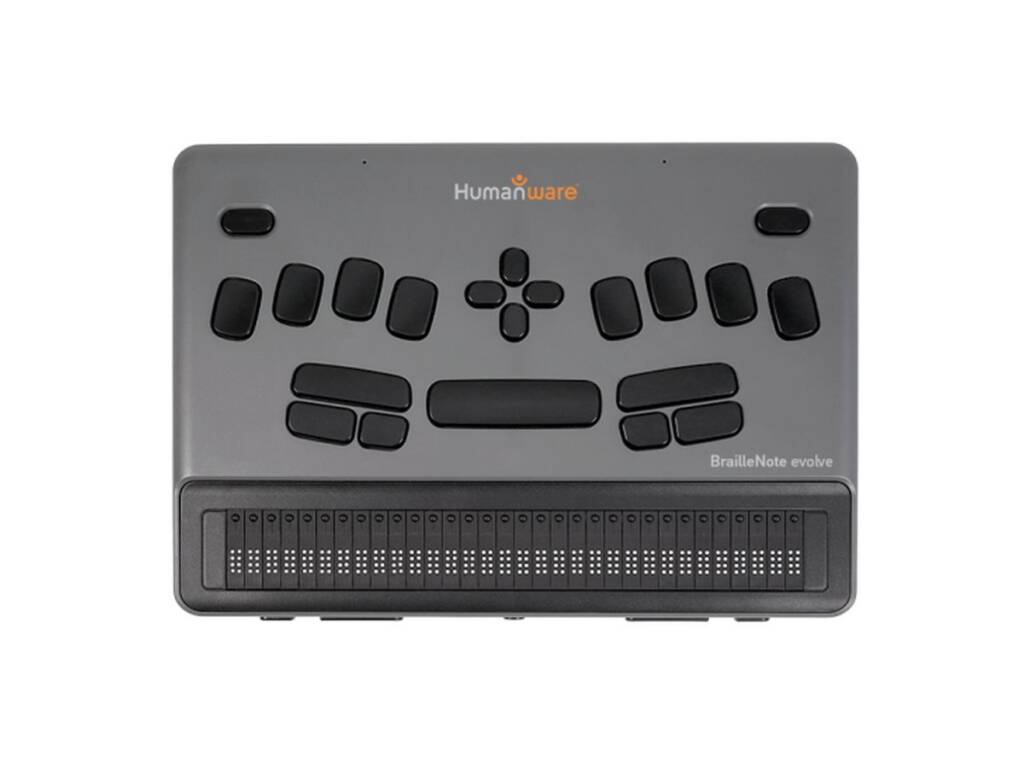
Though I only spent a few minutes with the 32-cell version, what I first noticed was that the Evolve build more closely resembles the BrailleNote Apex, rather than the BrailleNote Touch. This is primarily because there is no screen on the Evolve, which makes it less bulky and more lightweight. On the top surface, the user will find the 8-dot Perkins keyboard, along with a spacebar located below and between dots 1 and 4. There are also a set of arrow keys. There is an escape key in the top left corner of the device and a delete key in the top right. To the left of the spacebar is a long key that functions as Shift, with Control and Alt keys below it. To the right of the spacebar is another long key used as the NVDA/JAWS Modifier key, and below that are the FN key and Windows key. The device includes a 32-cell braille display with cursor routing buttons above it. Along the front edge are thumb keys: Previous, Pan Left, Home, Pan Right, and Next.
On the left side of the unit is an indented power/sleep button, an LED indicator, two USB-C/Thunderbolt ports, an HDMI port, and a Kensington lock slot for securing the device. On the right side are an Actions button (currently set for voice dictation), volume up and down buttons, a 3.5 mm headphone jack, and a USB-A port. The back edge has no ports. The underside includes a raised section for the battery and a grille for a cooling fan. Since it runs a full version of Windows 11 Pro, this means it should be compatible with any hardware supported by that operating system.
The device weighs roughly 2 pounds. There is also a case that will ship with the Evolve which is designed so that closing it can put the device into standby or shutdown mode, and opening it wakes the device.
From the software side, as noted above, it runs Windows 11 Pro. Though the Main Menu is a mix of Keysoft applications as well as Office applications. Keysoft users will feel at home with the Office products, as Humanware has customized the menu to resemble the more familiar Keysoft applications rather than the ribbon menu found on modern Microsoft Office applications. The Microsoft Office suite is Office 365, so the user will need to sign into their account to take full advantage of these applications, or will need to subscribe. The free screen reader NonVisual Desktop Access (NVDA) is installed by default. Users can install their own version of JAWS if they have one or take advantage of the 6-month trial of JAWS for BrailleNote. The 32-cell version was released in May, and will be followed by a 20-cell version with a Perkins keyboard and 40-cell version with a QWERTY keyboard later this year. The 20-cell variant is the same size as the 32-cell model. The prototype of the 40 felt very much like a fat Mantis, complete with the same keyboard layout. The 32-cell model costs $6,199, the 20-cell version costs $5,195, and pricing for the 40-cell QWERTY version will be announced at a later time. Shipping of preorders started in June 2026 for the 32-cell and 20-cell variants. For more information or to be notified when the BrailleNote Evolve 40 will be available, interested folks can register for updates.
It just makes BrailleSense, number 7
Selvas also had a new notetaker to show off at CSUN in the form of the BrailleSense 7. It will run Android 15. It contains an Octa-core CPU (up to 3.35 GHz), 8 GB of LPDDR5X RAM, and 256 GB of internal solid-state storage, with the option to expand to MicroSD cards of up to 2 TB. It’s a significant bump up in hardware, but the size is very close to what users found in the BrailleSense Polaris and 6. Included with the BrailleSense will be another battery and also a QWERTY keyboard, both of which can be attached to the device. I spent a few minutes with the 32-cell version of the BrailleSense 7 and here is the description as I remember it.
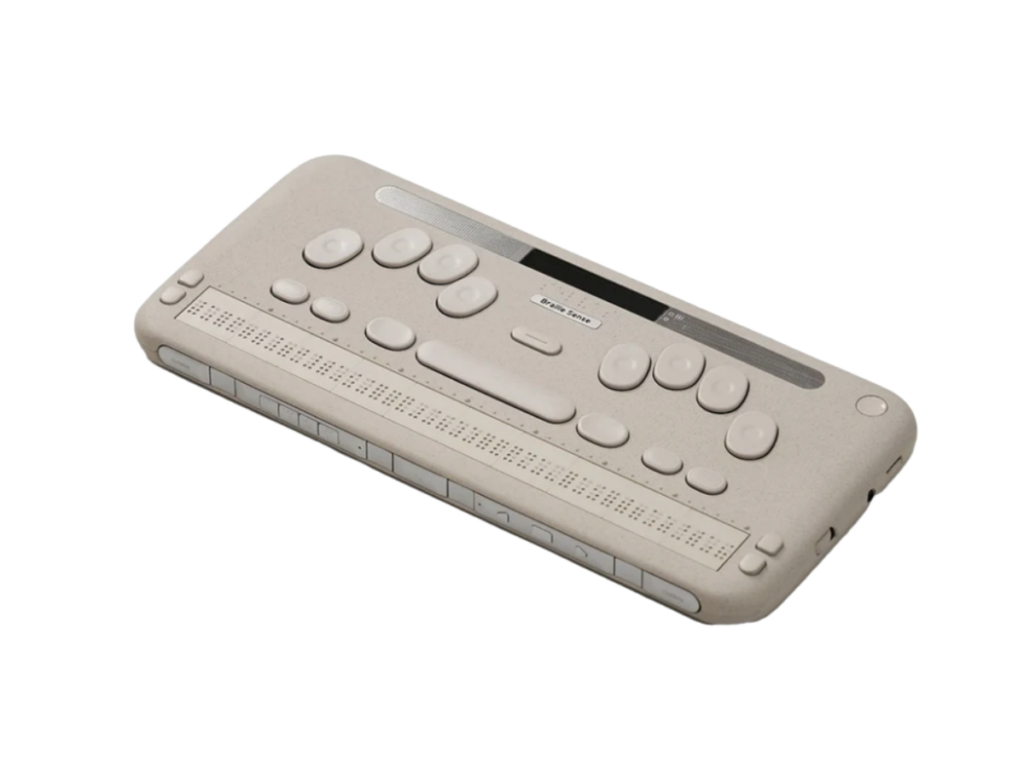
On the surface of the BrailleSense 7, in the top right corner is the power button. This is a change from the switch used in older models. Continuing with the surface, there are also stereo speakers. The surface also contains a Perkins-style keyboard, with the Gemini button located between dots 1 and 4. Below the braille keyboard is a row of command keys consistent with previous models: F1, F2, Control, Space, Alt, F3, and F4. Below these keys is the braille display: either 20, 32, or 40 cells depending on the model. The user will also find the diamond-shaped panning keys at each end of the display. There are no traditional cursor routing buttons. Along the right side, the user will find a 3.5 mm jack which supports both input and output, a MicroSD card slot, and a Volume / control wheel. Rotating it adjusts values such as volume, while pressing it cycles between controls like main volume, voice volume, speech rate, and pitch. Pressing and holding the wheel activates a “quick scroll” mode for navigating menus without using traditional navigation keys.
On the front of the device, the user will find more buttons instead of the switches found on previous models. These buttons are labeled: A, D, R, and M. These correspond to Applications, DAISY, Record, and Media modes.
The left side of the BrailleSense 7 contains a total of three ports: two USB-C ports and one USB-A port positioned between them. One USB-C port is dedicated to charging, while the other functions as a host port for external devices. This is helpful, since connecting to a laptop through USB will not cause the laptop or phone to also attempt to charge the BrailleSense 7. The back of the BrailleSense 7 includes an HDMI port for connecting the device to an external display, along with a USB-A host port. When the optional extended battery is attached, the HDMI port remains accessible, while the USB-A port is used to connect the battery itself. The extended battery mounts directly to the back and also serves as the attachment point for the included QWERTY keyboard.
On the bottom of the device is a user-replaceable battery, which provides approximately 18 to 20 hours of use per charge. Also located on the bottom is a 20-megapixel camera.
Cursor routing is achieved differently on the BrailleSense 7. Instead of cursor routing buttons, the user double-taps the cell they wish to move the cursor to. In addition to double tapping the display to route the cursor, there is an alternative method that involves pressing one of the buttons on the front panel and then simply touching where you would like to route the cursor.
Another feature added with the BrailleSense 7 is a new way of panning. Instead of panning by a set interval or hitting a button to pan, the BrailleSense 7 senses first when the user’s finger reaches the end of the line and then also senses when they move back to the beginning of the line and will then quickly pan forward. I found this feature to work well and that it was responsive. It also seems like an intuitive way to handle this technology, in case the user wishes to re-read the line when they reach the end. I found the keyboard to be a more smooth experience than what I recall from my time using the BrailleSense 6.
The BrailleSense 7 is anticipated to be released in late summer. The 20-cell model will cost $5,295, the 32-cell version will cost $5,995, and the 40-cell variant will retail for $6,495. At the time of writing, Selvas is offering discounts on pre-orders, and you can find details on those discounts at the provided link.
Yes, it’s all about the Dot
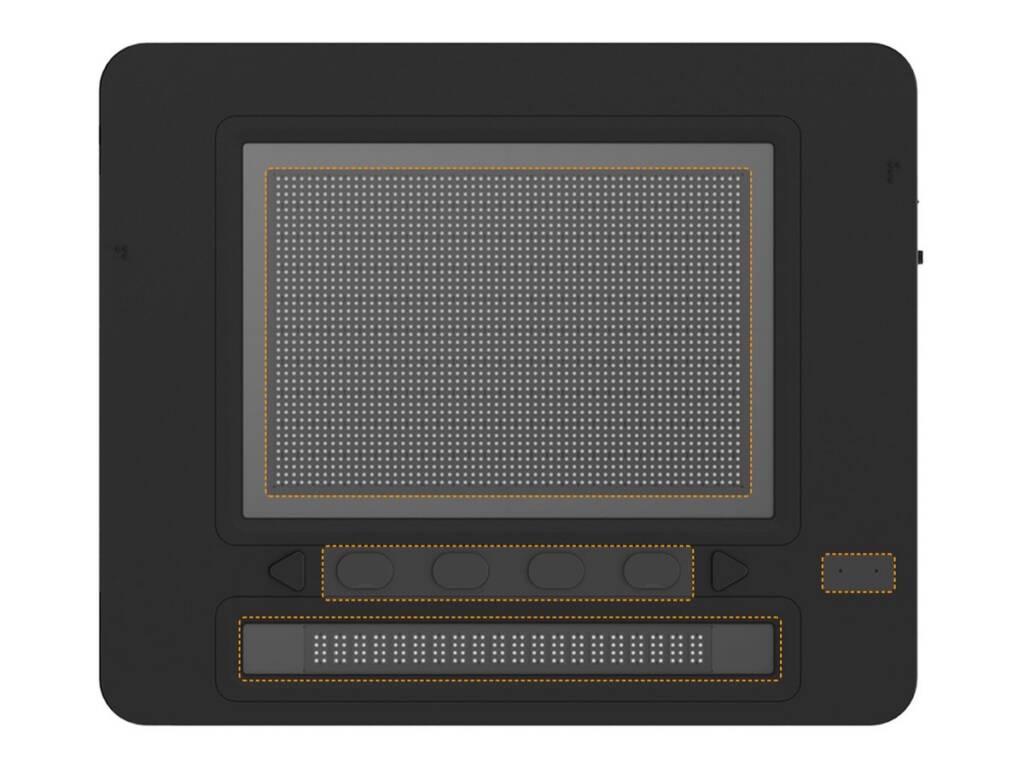
Dot Inc. was showing off the Dot Pad X. It’s an 8-line braille display with 20 cells in each line, along with a 20-cell single-line at the bottom. It’s about the size of an iPad Pro, and the device is set at a slight incline, with the back raised slightly to create a more natural reading position. With the device in front of you, the closest thing to you is the 20 cell panel. Behind this, there are 6 buttons. The far left and right buttons are triangular-shaped, and the other 4 are oval-shaped. The triangular buttons pan the 20-cell panel. With the 4-oval shaped buttons, 2 of them have a raised bump. These 2 buttons pan the tactile display, which is located above the 6 buttons. Covering the tactile display surface is a thin, flexible sheet referred to as a “cell protector,” designed to prevent dust, dirt, moisture, and other substances from entering the cells. Dot includes 3 of these along with the one attached to the Dot Pad when purchased. The 20-cell display is intended to be used for content such as image labels, descriptions, or additional information from connected devices. The tactile display can be used to display text or tactile graphics. On the top face, toward the right-hand side, there is a braille letter “P” marking the power control. The power switch and USB-C port are located on the right edge. On the left edge, there is a second USB-C port, marked with a braille letter “D,” which is used for data connections such as linking to a computer. It is nice that these 2 are separate, so that you are not automatically charging the Dot Pad each time it is plugged into an external device. Which is important, since the Dot Pad is driven by the connected screen reader.
The Dot Pad X is the first display I have found which connects to an iOS device and can display both text and some tactile graphics. Opening the Kindle app allows for a multi-line experience that is seamless, since there is no need to turn pages once a book is opened. Dot indicated that the device works well with the Bookshare Reader, Apple News, and the aforementioned Kindle app. Once connected to my iPhone, I found it interesting, for example, to learn what the icons on my Home Screen felt like. It even gave details such as the fact that I had new text messages, which changes the shape of the icon slightly. Once expanded, I was even able to feel 2 dots that indicated I had 2 unread messages.
The device not only connects with iOS but also the PC and can be used with both the NVDA and JAWS screen readers. Though NVDA’s support is still evolving, JAWS has extensive support for multi-line braille in terms of text output for the Dot Pad. This support includes access to spreadsheets, Word documents, websites, and much more. JAWS also has a lot of features which permit the user to run the display in many different split views. For example, it’s possible to have a Word document display on 1 section while also having a website displaying captioning at the same time.
The Dot Pad is primarily intended as a consumption device. It does not have a direct way to input text. However, Dot has a platform that developers can use to get even more out of the device. A.T. guys has developed several applications for the Dot Pad including a March Madness scoreboard, month view of a calendar and 9 games, as of the time of writing. Though the display is capable of 8 lines of output, it can be used as a 10 line display in 6 dot mode for reading books. This can be achieved through the Dot Book application on iOS. Another application for iOS called Dot Canvas allows the user to draw pictures on their iOS and iPadOS devices which will then be displayed on a connected Dot Pad. There are other apps available as well, along with applications on Windows, but full coverage of these tools is beyond the scope of this article.
The Dot Pad X is a big improvement over the device I first checked out at CSUN 2024. The earlier generation of the Dot Pad was impressive, but I found the cells to be a bit too delayed for my liking and also did not like that I had to pick my hands up off the display to refresh it. Both issues have been addressed with the Dot Pad X and reading content on it is a much more pleasant experience. I especially noticed that the dots are sharper on the Dot Pad X.
The Dot Pad is available for $5,900 U.S., and is also available through many dealers worldwide.
Setting the Cadence for Multiline Braille
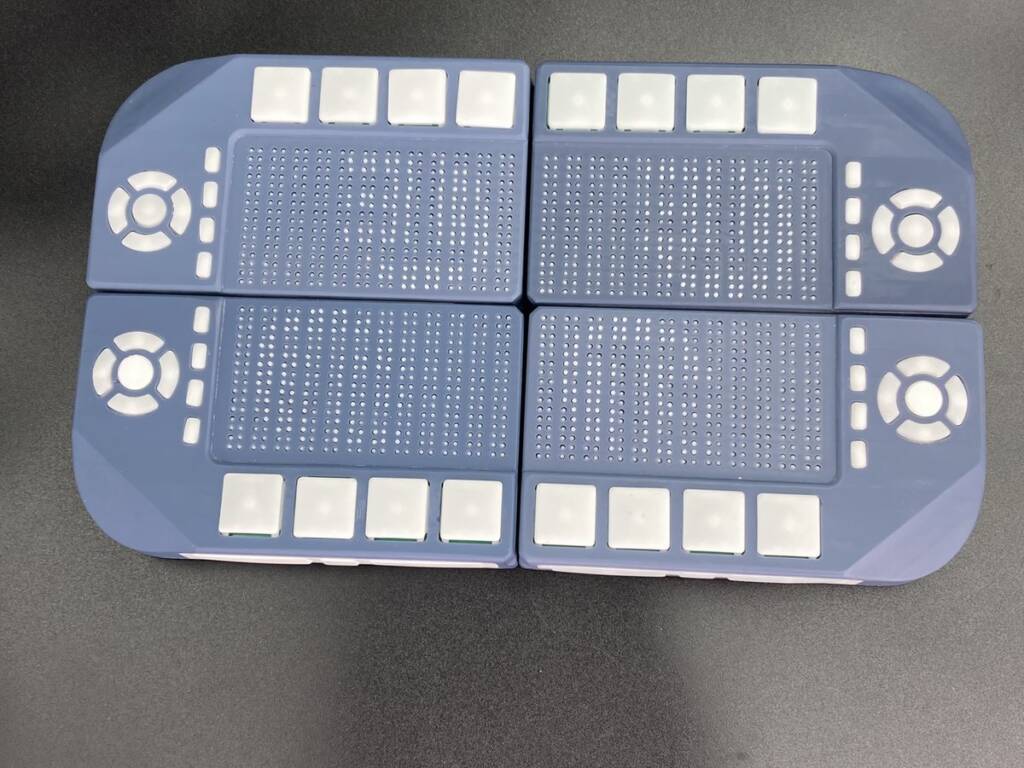
Tactile Engineering was also showing off an interesting set of devices called the Cadence. There are three models available: the Cadence Pocket, Cadence Pro, and the Cadence Workstation. The Cadence Pocket is a multi-line device that contains four lines of 12 cells each. The Pocket is roughly the size of a smartphone such as the iPhone 16 Pro Max. The device also includes a four-way directional pad for navigation and a button next to each line for selecting items such as menu options. The Pocket also has a half Perkins-style keyboard at the bottom, which can function as a full Perkins keyboard using a form of one-handed mode. There are also three additional buttons on the surface, which are used for functions such as going Home and accessing menus.
The Cadence Pro is a solution that combines two of the Cadence Pockets into one device. Instead of four lines of 12 cells, there are now four lines of 24 cells. This also expands the half Perkins keyboard into a full one for text input. When two Cadence Pockets are combined, I was unable to discern where one unit’s cells ended and the other began, which allows for a comfortable and smooth reading experience.
The Cadence Workstation combines four of the Pockets to form a 192-cell option, arranged in eight lines of 24 cells. Since the Cadence Workstation combines all of the units, this also means that the user has the ability to take one or two Cadence Pockets with them for more portable use. The larger Workstation is well suited for spreadsheets, coding, and many other tasks that require access to more information at the same time.
Tactile Engineering indicated that their devices are fully compatible with NVDA, JAWS, and VoiceOver screen readers. With VoiceOver, both tactile graphics and multi-line text are supported. Although the device does not have cursor routing buttons, cursor routing is achieved by pressing firmly on the cell where the user wishes the cursor to move. This function is available both on the internal applications as well as when using a screen reader.
Screen reader support is only part of the story. Tactile Engineering has also developed its own operating system called Cadence OS. Cadence OS is the software system that runs on Cadence tactile displays and allows users to read and interact with braille and tactile graphics on the device. It works through a user account and includes features, updates, and some services that are accessed through an active subscription, with certain functions relying on an internet connection. The system is designed to support both standalone use and connection to other devices, enabling interaction with content. This content can include tactile graphics and many other types, and the interaction extends beyond what screen readers on the market currently offer.
The amount of customization available is beyond the scope of this article, but here are a few examples I was shown. The device can switch to an output mode that displays raised print letters. It is also possible to increase the spacing of dots. Many games are included, along with a wide variety of tactile graphics. There was also a demonstration of a sporting event where the user could track activity on the display.
Cadence OS requires a subscription, but it was not clear how much the charge would be, how long a subscription lasts or which features are unavailable without a subscription. At the time of writing, for qualified individual users, the Cadence OS subscription comes for free. A qualified individual is a person who is blind or has low vision and purchases the device using their own funding; subscriptions are available first-come, first-served. Tactile Engineering also has a limited one-time sale only for qualified individual users, which reduces the price of the Cadence to $3,450. For more details, Tactile Engineering indicated that those interested should fill out their contact form. Pricing for the various models is as follows. $5,750 for the Pocket, $11,500 for the Pro, and $23,000 for the Workstation.
Conclusion
Taken together, both parts of my CSUN 2026 coverage illustrate an industry that is not only evolving, but doing so in ways that feel increasingly intentional. In Part 1, I explored products focused on access through audio, AI, and haptics, along with updates from companies continuing to refine their earlier work. In Part 2, the focus shifted to braille, where that same spirit of innovation is clearly accelerating, particularly in the areas of multi-line displays, tactile graphics, and flexible hardware options.
What stands out most is the growing recognition that there is no single right way to access information. Whether it is a device designed for pure braille output like the Orbit Flow, a full Windows-powered notetaker like the BrailleNote Evolve or Android device like the BrailleSense, or emerging multi-line solutions like the Dot Pad X and Cadence, the emphasis is increasingly on giving users meaningful options. That includes choices in price, form factor, input methods, and even how information is presented, whether through text, tactile graphics, or a combination of approaches.